Start playing Subby Buddy
Start one round, then find the right guide for noticing, grouping, building, or choosing settings.
Updated October 7, 2026Open the game ↗Start a round
- Open Subby Buddy from Shapes, Patterns and Number Sense.
- Keep Surprise me! selected, or choose a world.
- Select Let’s explore!
- Look at the objects in the scene.
- Select the number that matches the amount.
The starter uses Spot it with up to five objects. Rounds vary between dice patterns and ten-frames.
Train with cues, then check independently
Training: use layouts, Finger Aid, and the supplied outlines in Spot the Groups to help a child connect quantities with recognizable parts. Talk through what each cue shows.
Assessment through play: use Spot it with Finger Aid and Layout Mode off to check recognition, Arcade Drop to check missing-part combinations, and Build it to check how the child constructs a quantity. Let the child attempt the task before you offer hints, then ask how they worked it out.
Move between supported practice and independent checks as needed. These are informal observations, not a standardized test. See the exact training-to-assessment setup.
Choose the question you want to explore
| Your question | Read next |
|---|---|
| Why recognize quantities without counting? | Seeing a number before counting |
| How can smaller groups make a larger number? | Learning to find the smaller groups |
| What does my child create independently? | Build it: what does your child choose? |
| Why use one layout rather than another? | Same number, different layouts |
| Which settings should I choose? | Four setups to try together |
| Where is that exact control? | Visual guide to the advanced settings |
Talk about the pattern
Give your child a moment to look. Ask “What do you notice?” before asking how many.
Then ask “How did you see it?” Your child might describe two pairs, a row, or a group and one more. A gesture or pointing to a group counts as an explanation, too.
Counting is welcome. If your child counts each object, you can then ask “Do you see any smaller groups?” Compare their count with the pattern.
A wrong answer leaves space to try again. There is no timer in Spot it. A correct answer alone does not tell us whether a child recognized, grouped, estimated, or counted the objects.
Read why we invite children to notice groups within a total.
Find the main controls
The main controls share one row above the scene. On small screens, their pictures stay visible. Tap a picture to open its menu.
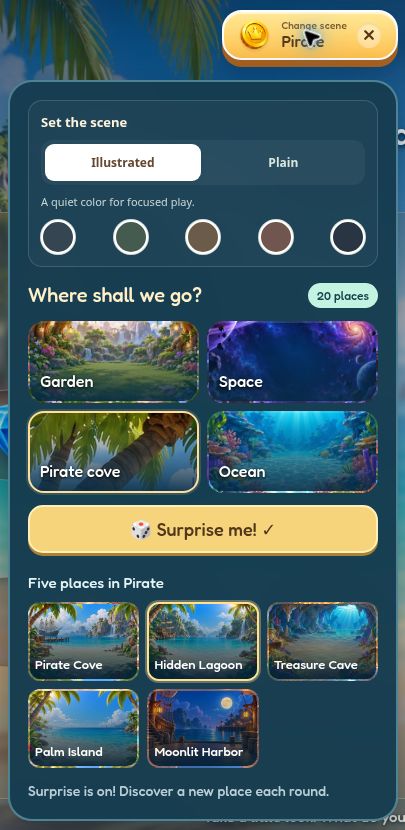
- Change scene: choose a world, a place, or a plain background.
- How to play: choose a game mode.
- Game options: change voice and music options, or open Play guides in a new tab.
- Advanced settings: change the learning options for the current mode.
- Reset defaults: restore the starter setup after confirmation.
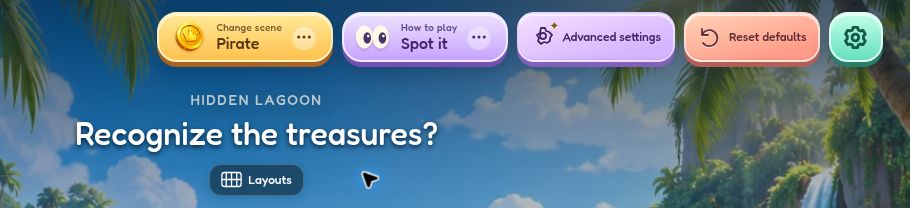
For the open mode dropdown, see the illustrated mode selector. For the settings checkpoint, see Open the settings.
Try it away from the screen
Arrange three or four large blocks on a table. Let your child look, then cover them briefly with a cloth.
Ask how many they saw. Remove the cloth and check together. Use objects that are safe for your child’s age.
Four worlds, twenty places
Open Change scene to see the current world and its five places.
| World | Current places |
|---|---|
| Garden | Sunny Garden · Lily Pond · Mushroom Glen · Orchard Picnic · Firefly Garden |
| Space | Star Valley · Moon Camp · Rainbow Nebula · Ringed Planet · Star Station |
| Pirate | Pirate Cove · Hidden Lagoon · Treasure Cave · Palm Island · Moonlit Harbor |
| Ocean | Coral Canyon · Kelp Forest · Pearl Palace · Sunken Ship · Glow Reef |
Surprise me! changes worlds and places between rounds. Choosing a world turns Surprise off and keeps later rounds in that world, while its places still vary. Choosing a place uses it for the next round; it does not permanently freeze that background.
For a steady, simpler backdrop, choose Plain at the top of the scene menu and pick a color. The number activity stays the same.