Same number, different layouts
What dice, ten-frames, circles, and other arrangements invite children to notice.
Updated October 7, 2026Open the game ↗An arrangement offers a way to think
Layouts are a training mode. The game supplies structure so the child can practise seeing quantities as recognizable parts. Dice Style, Ten-Frame, and the other layout choices offer different visual supports.
Moving objects changes the picture without changing how many there are. An arrangement may make a pair, a row, or a familiar quantity easier to notice. Invite your child to describe what they see before naming a structure for them.
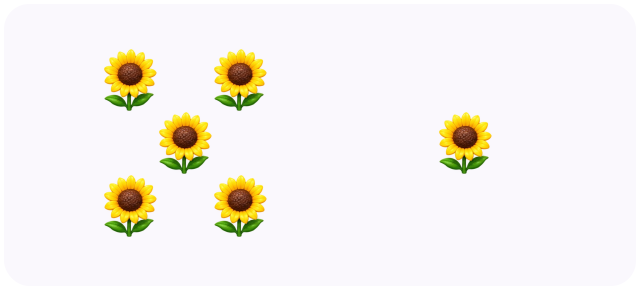
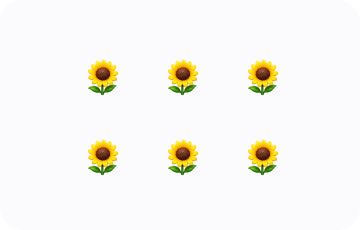
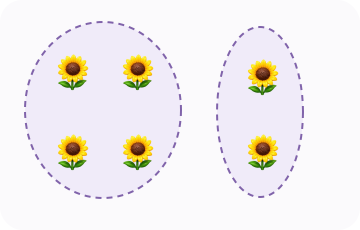
Teaching illustrations of six. Five and one is the main teaching example; the other pictures show alternative two-part arrangements, not selectable six-item presets. In the current Dice Style layout, six appears as five plus one across two dice-style groups.
Find the layout controls
From the toolbar to a layout
Choose a numbered step, or use Next. Tap any screenshot to enlarge.
Find the controls
Choose Spot it from the purple How to play dropdown. Advanced settings is beside it in the top toolbar. Layouts is a separate button below the question.
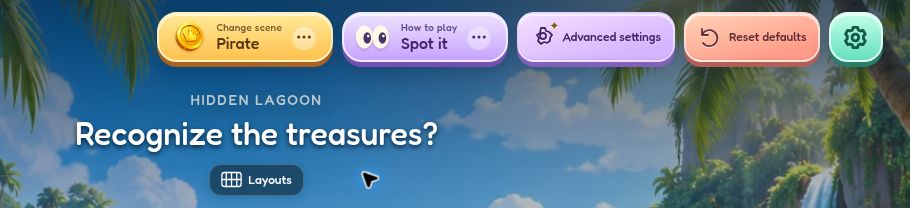
Enable layouts
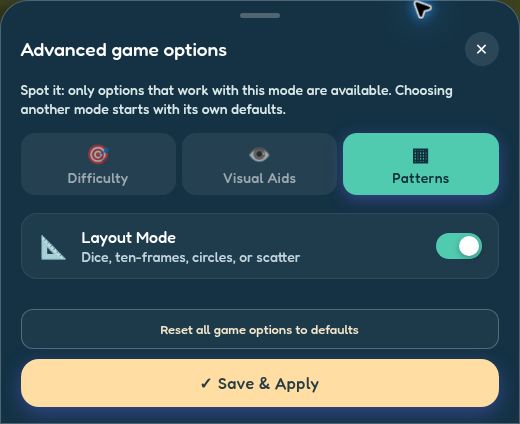
Open Advanced settings, answer the maths checkpoint, and choose Patterns. Keep Layout Mode on, then select Save & Apply.
Pick a layout
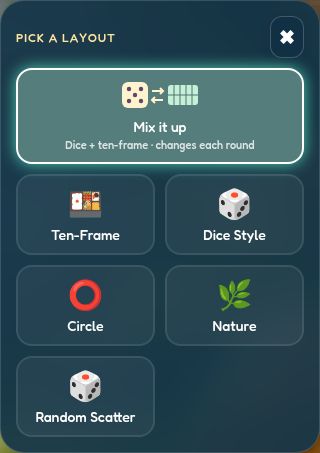
Back in the game, select Layouts below the question. Choose Dice Style, Ten-Frame, or another arrangement from this picker.
There is no fixed-total selector. Maximum items sets an upper bound, so the next round may have fewer objects. Use Build it before submission, or real objects, if you want to compare two arrangements of exactly the same amount.
What each choice offers
| Layout label | What the current game does | A question to try |
|---|---|---|
| Mix it up | Alternates unpredictably between dice and ten-frame layouts. | “What did this arrangement help you see?” |
| Dice Style | Familiar die patterns for 1–5; larger totals use five plus the remainder across two groups. | “Can you see a five and some more?” |
| Ten-Frame | Ten positions in two rows of five, filled across the first row and then the second. | “How many full spaces? How many empty?” |
| Circle | Uses ten positions around a circle; only the target amount is filled. | “Where could you split the filled objects into parts?” |
| Nature | Varies among petal, honeycomb, ladybug, starfish, and vine-inspired arrangements. | “Do any small groups stand out?” |
| Random Scatter | Uses loosely spaced positions within a two-row scaffold while Layout Mode is on. | “Could you find a pair or another small group?” |
Random Scatter is not fully unstructured placement. For a freer scatter, use Spot it with Advanced settings → Patterns → Layout Mode off. The Layouts button then disappears. Neither scatter option lets children move the displayed objects; use Build it for placement.
One picture, two relationships
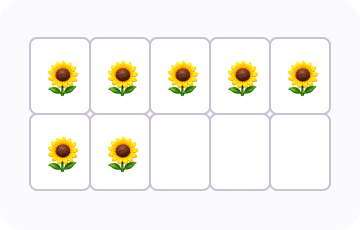
A full first row gives a reference of five. Empty places show what is missing from ten. Ask your child what they notice first. Counting filled or empty spaces remains useful.
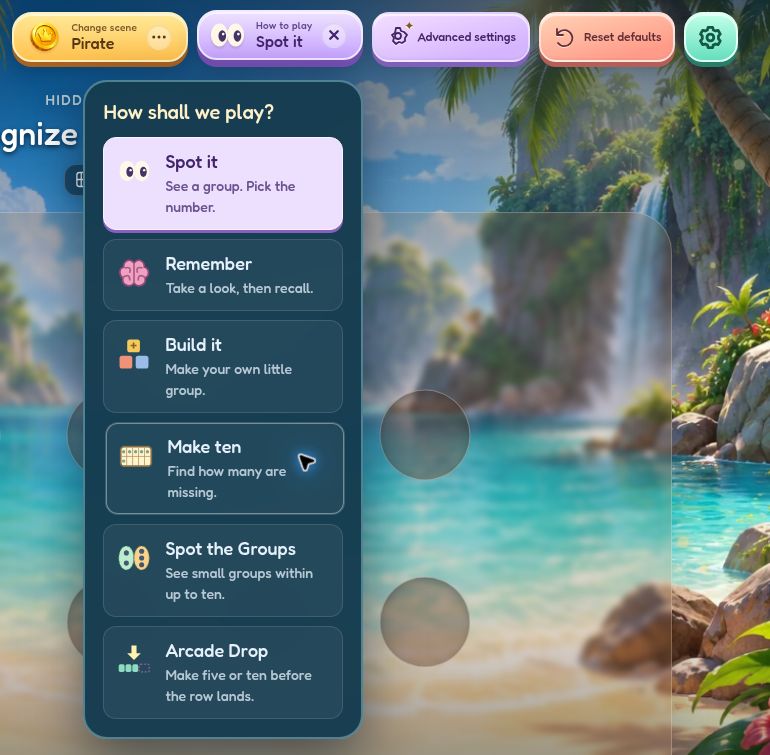
To practise the missing part, choose How to play → Make ten; it starts with the Ten-Frame layout. The answer is how many more make ten, not the number already shown.
Choose structure for a purpose
Layouts are training supports: they supply an arrangement that helps the child see useful parts. During training, discuss how a familiar five combines with the remainder; fingers and grouping outlines offer other ways to show that structure. For an independent recognition check, choose Spot it → Advanced settings → Visual Aids → Finger Aid off → Patterns → Layout Mode off → Save & Apply. Let the child answer before asking how they saw the amount.
Build it checks whether the child can supply a structure themselves. Arcade Drop checks missing-part combinations. These are different ways to observe learning, not a required sequence of levels. See the exact support and assessment settings.