Visual guide to the advanced settings
Real settings screenshots, exact menu paths, and why controls change with the mode.
Updated October 7, 2026Open the game ↗Open the settings
Reach the learning settings
Choose a numbered step, or use Next. Tap any screenshot to enlarge.
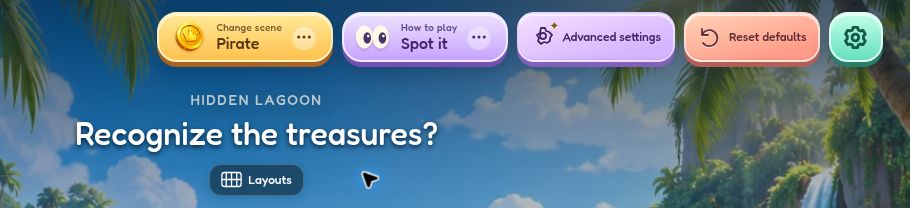
Open Advanced settings
After starting play, select Advanced settings in the top toolbar. Look for the purple button with a gear and sparkles, beside How to play.
Answer and continue
Type the answer to the displayed question, then select Open settings. In the panel, choose a tab, change an option, and select Save & Apply.
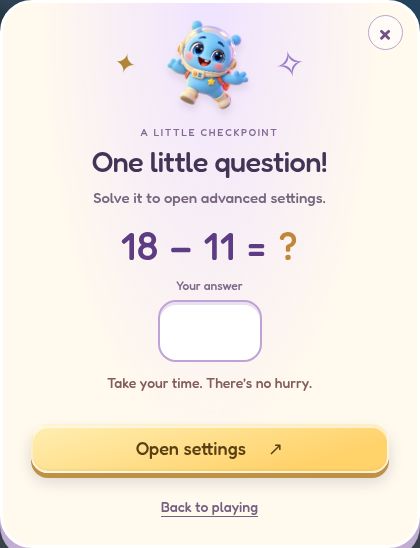
Addition answers range from 11 to 20. Subtraction answers range from 6 to 13. Subtraction uses numbers no greater than 20.
A wrong answer keeps settings closed. The prompt suggests another attempt or help from a parent.
Each visit has a new question. This is a simple checkpoint, not a secure parental lock.
Difficulty: Maximum items
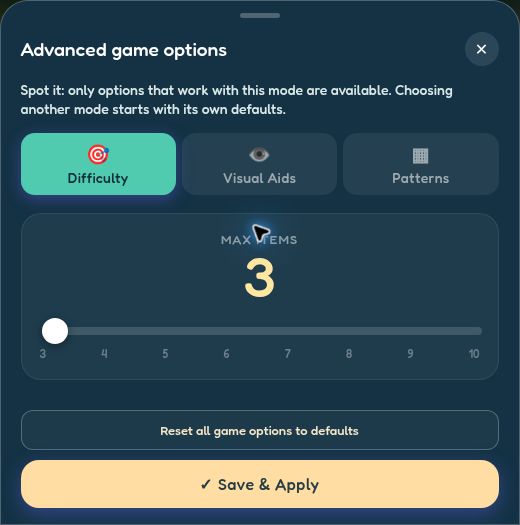
For modes with this control, Maximum items sets the largest amount from three to ten. It does not make every round show that amount. Build it instead uses alternating ranges of 1–5 and 6–10.
Make ten still asks for the missing amount to ten. Arcade Drop has its own five-or-ten choices on its starting screen.
The panel’s visible label is Max Items. Here it is set to three in Spot it.
Visual Aids
Use layouts, fingers, and grouping outlines for training. They supply information the child can learn to recognize. For an independent check, choose Spot it and turn Finger Aid and Layout Mode off, or use Build it / Arcade Drop. Grouping outlines remain fixed on inside Spot the Groups.
| Option | What it changes | Why you might use it |
|---|---|---|
| Grouping outlines | Marks smaller groups in Spot the Groups. | Talk about the parts that make a total. |
| Finger Aid | Shows a matching finger representation where supported. | Compare an amount with a familiar hand pattern. |
| Mixed Items | Uses different objects in the same round. | Explore how the total stays meaningful when objects differ. |
Start with one kind of object if mixed items make the task harder to follow.
Grouping outlines is fixed by the mode: on in Spot the Groups, off in the other modes. Its dimmed switch cannot be used to remove the outlines within grouping mode.
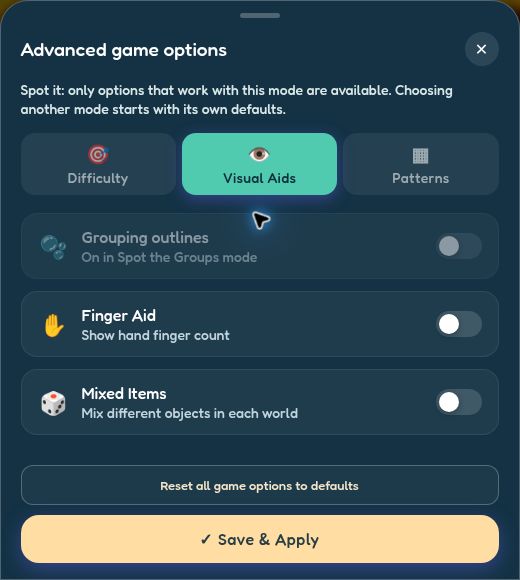
For the same panel with grouping active, see the grouping setup.
The screenshot above confirms Finger Aid is off; also turn Patterns → Layout Mode off for the independent Spot it setup. For training, turn on Finger Aid, Layout Mode, or both, then select Save & Apply. See the full progression.
Patterns and layouts
Layout Mode is a training support. Turning Finger Aid off does not remove the supplied layout. For independent Spot it assessment, turn both settings off.
Open Advanced settings → Patterns. With Layout Mode on, select Save & Apply, then use Layouts below the question to choose a pattern.
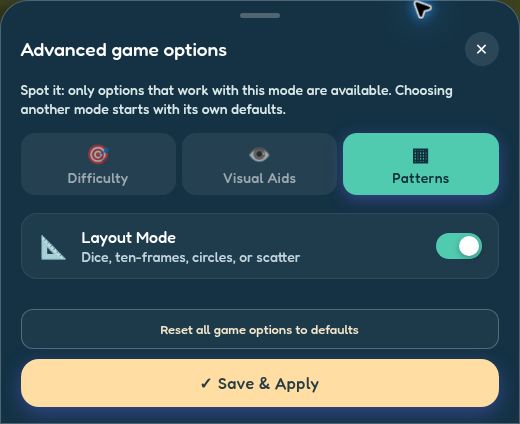
See the exact layout picker and every layout’s purpose. With Layout Mode off in Spot it, objects scatter and the Layouts button is hidden.
Restore the starter setup
Reset defaults is the peach button in the top toolbar, between Advanced settings and the green Game options gear; see the toolbar screenshot above.
Select Reset defaults. Confirm the reset in the popup.
The game returns to Spot it, up to five objects, and mixed dice and ten-frame layouts. Surprise scenes and voice are on.
Music is off. The illustrated background returns. Best scores remain on the device.