Four setups to try together
Exact settings for small quantities, guided groups, child-created arrangements, and missing parts.
Updated October 7, 2026Open the game ↗From seeing to structuring
To choose a mode, start play, then open the purple How to play dropdown in the top toolbar. It shows the current mode, such as Spot it. See the open dropdown. The settings guide shows the toolbar and checkpoint.
Use the setups for two purposes: training with fingers or grouping cues, then assessment through independent Spot it, Arcade Drop, or Build it attempts. Talk and model during training; let the child respond before offering hints during a check. These are informal observations, not standardized tests.
For the illustrated explanation of subitizing, read Seeing a number before counting. For independent arrangements, read Build it: what does your child choose?.
Changing modes restores that mode’s defaults. A maximum is an upper limit, not an exact target for the next round.
For Layout Mode, Finger Aid, and the full progression, see From training to assessment.
First patterns
Purpose: train with layouts. Dice Style supplies the pattern, so this remains supported practice even with Finger Aid off. Discuss what makes the amount easy to see. For a later independent Spot it attempt, keep Finger Aid off and change Patterns → Layout Mode to off, then Save & Apply.
| Where to go | What to choose |
|---|---|
| How to play | Spot it |
| Advanced settings → Difficulty | Max Items: 3 |
| Advanced settings → Visual Aids | Finger Aid: off; Mixed Items: off |
| Advanced settings → Patterns | Layout Mode: on |
| After Save & Apply → Layouts | Dice Style |
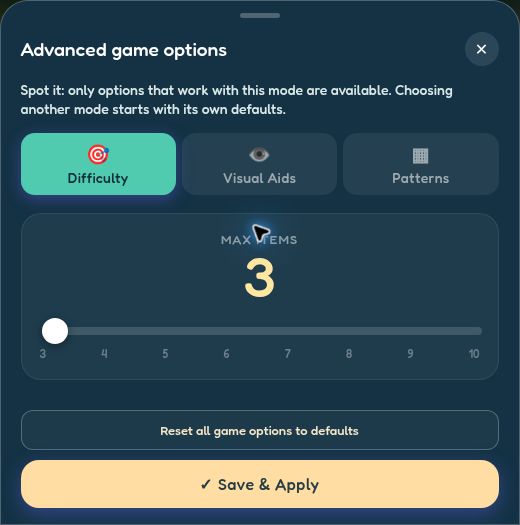
Try: “How many? How did you see it?” Let your child count if needed. Match the amount with large blocks. For the other switches, see the visual settings reference.
For the button that opens the pattern picker, follow Find the layout controls.
See the smaller groups
Purpose: training. The outlines supply the grouping. Keep Finger Aid off to focus on outlines alone, or turn it on when you want to connect both representations.
| Where to go | What to choose |
|---|---|
| How to play | Spot the Groups |
| Advanced settings → Difficulty | Max Items: 6 |
| Visual Aids | Grouping outlines on automatically; Finger Aid off; Mixed Items off |
| Patterns | Layout Mode off automatically |
| Finish | Save & Apply |
Try: “What groups do you see? How many altogether?” Increase the maximum later if your child wants more. See the screenshots and current group combinations.
Let your child create the arrangement
Purpose: assess independent construction. Begin with the game’s own prompt and no model. Observe whether the child organizes the quantity into two recognizable parts, often five and the remainder.
| Where to go | What to choose |
|---|---|
| How to play | Build it |
| Choose item | Pick one picture |
| Settings | Keep the mode’s fixed defaults; targets alternate 1–5 and 6–10 |
| Before Check | Ask the child to describe the arrangement |
Try: After an unprompted attempt, ask “Tell me about what you made.” Save “Can you make it easy for someone else to see how many?” for a supported follow-up. Use Clear before Check to rebuild the same requested amount. Read what pattern recognition tells you—and what it cannot.
Make five before making ten
Purpose: check missing-part combinations. Choose Practice to observe the answer without time pressure. Let the child answer first, then ask how they knew; explaining a combination together returns the activity to training.
| Where to go | What to choose |
|---|---|
| How to play | Arcade Drop |
| Starting card | Make 5 |
| Pace | Practice — No rush · 10 rows |
| Start | Let’s drop! |
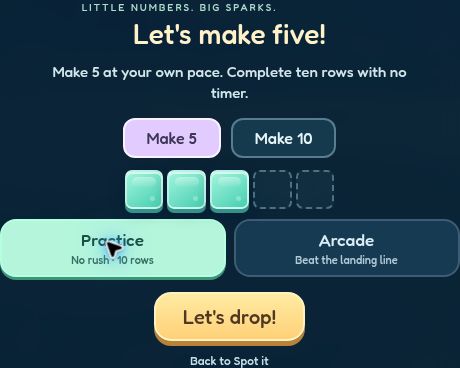
Try: “What goes with three to make five?” For ten, choose Make 10 on the same card. Or use How to play → Make ten for a visible ten-frame question. Read the Arcade Drop guide.
See where to select Arcade Drop, or where to select Make ten.
A quieter scene
Two small changes for quieter play
Choose a numbered step, or use Next. Tap any screenshot to enlarge.
Simplify the scene
Open the yellow Change scene dropdown in the top toolbar. Its larger label is the current world. Select Plain beside Illustrated at the top of the panel, then choose a color circle.
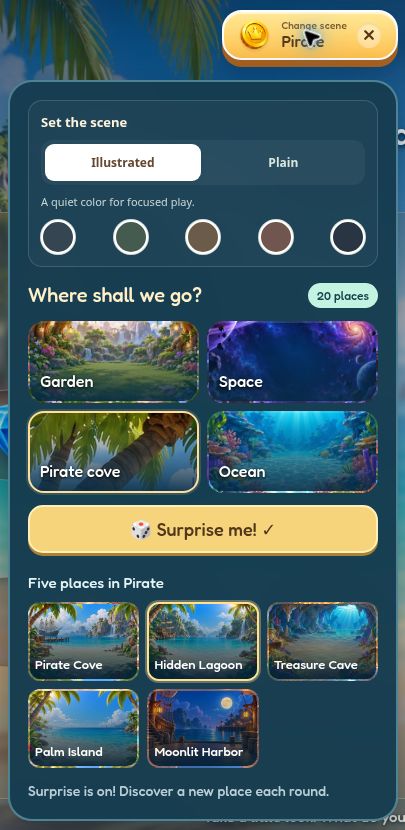
Adjust the sound
Open the green Game options gear at the right of the toolbar. If its button says Music on, tap it once so it says Music off. Keep Voice on if spoken prompts help.
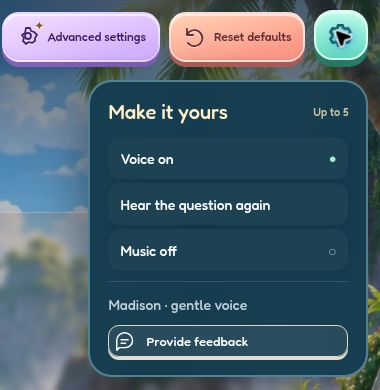
These are optional preferences you can use with any recipe. Change one thing at a time and watch how your child responds. A pause or a shorter visit is always an option.
The science behind the play
These setups reflect our design intentions, not measured learning outcomes. For the research background and sources, read Seeing a number before counting.