Choose among the six play modes
What each mode asks your child to do, and when to try it.
Updated October 7, 2026Open the game ↗Choose the kind of play
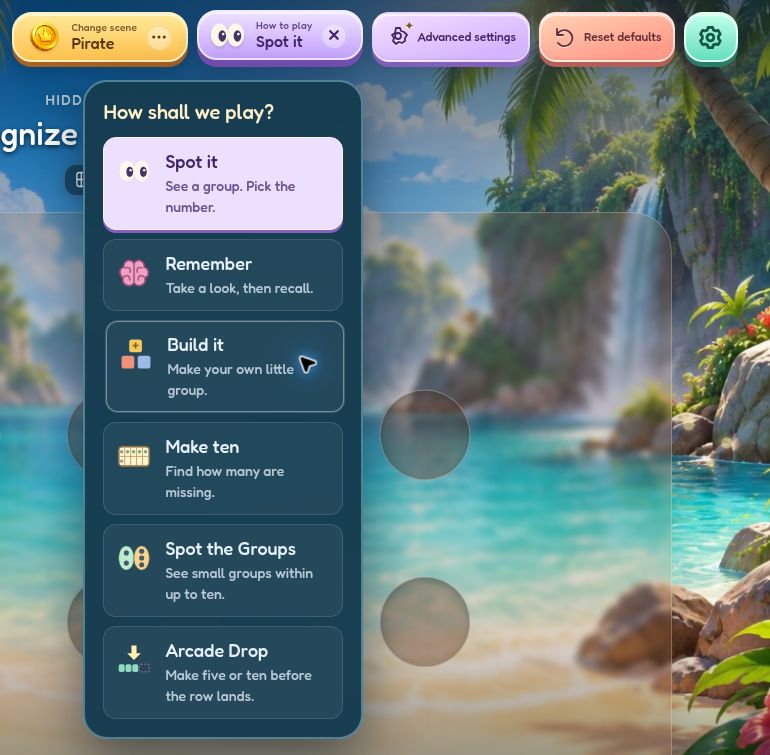
After Let’s explore!, find the purple How to play dropdown in the top toolbar. It displays your current mode, such as Spot it. Click or tap that button to open the choices, then select the mode you want. On a small screen, tap its mode picture if the words are hidden.
| Mode | What your child does | Our purpose |
|---|---|---|
| Spot it | Choose the number of visible objects. | Check quantity recognition independently with Finger Aid and Layout Mode off. |
| Remember | Look, then answer after the objects hide. | Describe or recall a pattern after a short look. |
| Build it | Place 1–10 objects. Rounds alternate 1–5 with 6–10. | Check whether the child independently constructs the quantity and its structure. |
| Make ten | Choose how many more objects make ten. | Explore a whole and its missing part. |
| Spot the Groups | Find the total of outlined groups. | Train recognition of parts using supplied outlines. |
| Arcade Drop | Complete a row of five or ten. | Check missing-part combinations, with an optional time challenge. |
Layouts, fingers, and grouping are training supports. Spot it, Arcade Drop, and Build it are intended as assessment opportunities after that support. Spot it provides training when Layout Mode or Finger Aid is on; turn both off for an independent check. See the exact progression.
Build a pattern
In Build it, tap Choose item to pick a large picture. Tap the scene to place up to ten objects. Use Undo to remove the last object. Press Check when you are ready.
Each new round alternates between 1–5 and 6–10. The number within each range varies. There is no timer.
When the count is correct, Subby can trace a familiar shape and name it aloud. Dice patterns, lines, circles, triangles, squares, rectangles, and matching rows can receive this feedback. Dice groups can turn and vary in size. Two separate dice patterns can make seven through ten. Other arrangements still receive encouragement. A child does not need to make a shape to succeed.
For observation prompts and the difference between a correct amount and recognized structure, read Build it: what does your child choose?.
Start with visible objects
Train with visible objects and visual cues. Then use Spot it with Finger Aid and Layout Mode off or Build it for an independent attempt; both leave the objects visible while your child thinks.
Remember hides the objects after a short viewing period. Return to Spot it if hiding the pattern makes play frustrating.
Explore parts and wholes
Try Spot the Groups when your child wants to talk about smaller groups. It starts with up to ten objects and grouping outlines.
Try Make ten when your child is ready to explore empty spaces as well as filled spaces.
Mode names are choices, not levels. Your child can return to a familiar mode at any time.
For seven objects, a child might notice five and two, then combine those parts. Ask “How did you see it?” before offering an arrangement of your own. See From seeing to structuring for the rationale.
Read Learning to find the smaller groups for the training intention, exact settings, and supported-to-independent activities.